 Excel Export
button
Excel Export
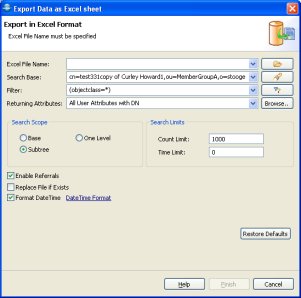
buttonThis dialog is used to export entries to excel files.
To open the dialog choose one of the following options
Excel Export
button
Note: Excel export is a very memory intensive operation, especially when you have very large number of attributes. Please use the csv export for exporting more than 10,000 records and then open the file using Excel.
|
Options |
Description |
|
Excel File Name |
The Excel file to export to. Type in the full
path or browse |
|
Search Base |
The base DN of the search. You could edit the DN
or select a recently used DN from drop-down list or click to
|
|
Filter |
Enter a valid LDAP search filter. The drop-down
list provides a history of recently used filters. A click to the
|
|
Returning Attributes |
A list of attributes to return, the default is All User Attribute with DN. You can the options from the drop down menu. The drop down menu provides the following options:
Select from the List option will open the Select Attributes Dialog, where you can select the attributes to return. You can also open the select attributes dialog from the Browse.. Button. To customize which operational attributes to export please see select operational attributes to display
|
|
Search Scope |
You can choose from the following options:
|
|
Count Limit |
The maximum number of entries the server should return, value 0 means no limit. Note that this value is a client-side limit; it's possible that also a server-side limit is used. |
|
Time Limit |
The maximum time in milliseconds the server should search. Value 0 means no limit. Note that this value is a client-side value; it's possible that also a server-side limit is used. |
|
Enable Referrals |
An indicator whether to follow referrals or not. |
|
Replace file if Exists |
If the export file already exists, you must permit to overwrite the file or it will ask when you click finish. |
|
Format DateTime |
If you check this box the export process will automatically format the dateTime to local time zone date time. The default format is EEE MMM dd yyyy HH:mm:ss 'GMT'Z for e.g ( Sate Apr 12 2008 20:32:52 GMT -0500) . You can modify the date time format by clicking the DateTimeFormat Link |
|
Restore Defaults |
Restore Defaults will restore the default filter and all the other fields to default values. |
Related tasks

|
LDAP Admin Tool Home Page |
 , to select the path on the file system. The
drop-down list provides a history of recently used files.
, to select the path on the file system. The
drop-down list provides a history of recently used files. to open the DN Selector dialog.
 filter editor button opens the Create
Filter dialog. Refer to the
filter editor button opens the Create
Filter dialog. Refer to the