 Ldif Export button
This dialog is used to export entries to ldif files.
To open the dialog choose one of the following options
Ldif Export button
Note: LDIF export is the fastest of all the export operations. This is the most efficient way to export hundreds of thousands of records from LDAP server.
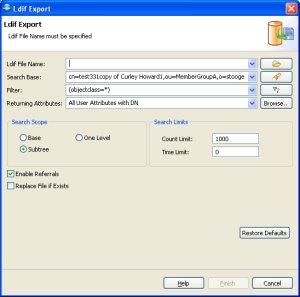
|
Options |
Description |
|
Ldif File Name |
The Ldif file to export to. Type in the full path
or browse |
|
Search Base |
The base DN of the search. You could edit the DN
or select a recently used DN from drop-down list or click to
|
|
Filter |
Enter a valid LDAP search filter. The drop-down
list provides a history of recently used filters. A click to the
|
|
Returning Attributes |
A list of attributes to return, the default is All User Attribute with DN. You can the options from the drop down menu. The drop down menu provides the following options:
Select from the List option will open the Select Attributes Dialog, where you can select the attributes to return. You can also open the select attributes dialog from the Browse? Button. To customize which operational attributes to export please see select operational attributes to display
|
|
Search Scope |
You can choose from the following options:
|
|
Count Limit |
The maximum number of entries the server should return, value 0 means no limit. Note that this value is a client-side limit; it's possible that also a server-side limit is used. |
|
Time Limit |
The maximum time in milliseconds the server should search. Value 0 means no limit. Note that this value is a client-side value; it's possible that also a server-side limit is used. |
|
Enable Referrals |
An indicator whether to follow referrals or not. |
|
Replace file if Exists |
If the export file already exists, you must permit to overwrite the file or it will ask when you click finish. |
|
Restore Defaults |
Restore Defaults will restore the default filter and all the other fields to default values. |
Related tasks

|
LDAP Admin Tool Home Page |
 , to select the path on the file system. The drop-down
list provides a history of recently used files.
, to select the path on the file system. The drop-down
list provides a history of recently used files. to open the DN Selector dialog.
 filter editor button opens the Create Filter dialog.
Refer to the
filter editor button opens the Create Filter dialog.
Refer to the